Agent questions
When the agent needs a decision from you, it places a card at the top of the message field in the thread. After you answer, the agent continues working and records your choice in the thread.
Only the person who started the thread can answer its cards. Other teammates see the card labeled with that person’s name, such as Question for Alex, and the note “Only Alex can answer. You can follow along.”
Answer a question
A Question card asks you to choose between options. When the agent recommends an option and the card shows its full list, a Recommended chip marks that option.
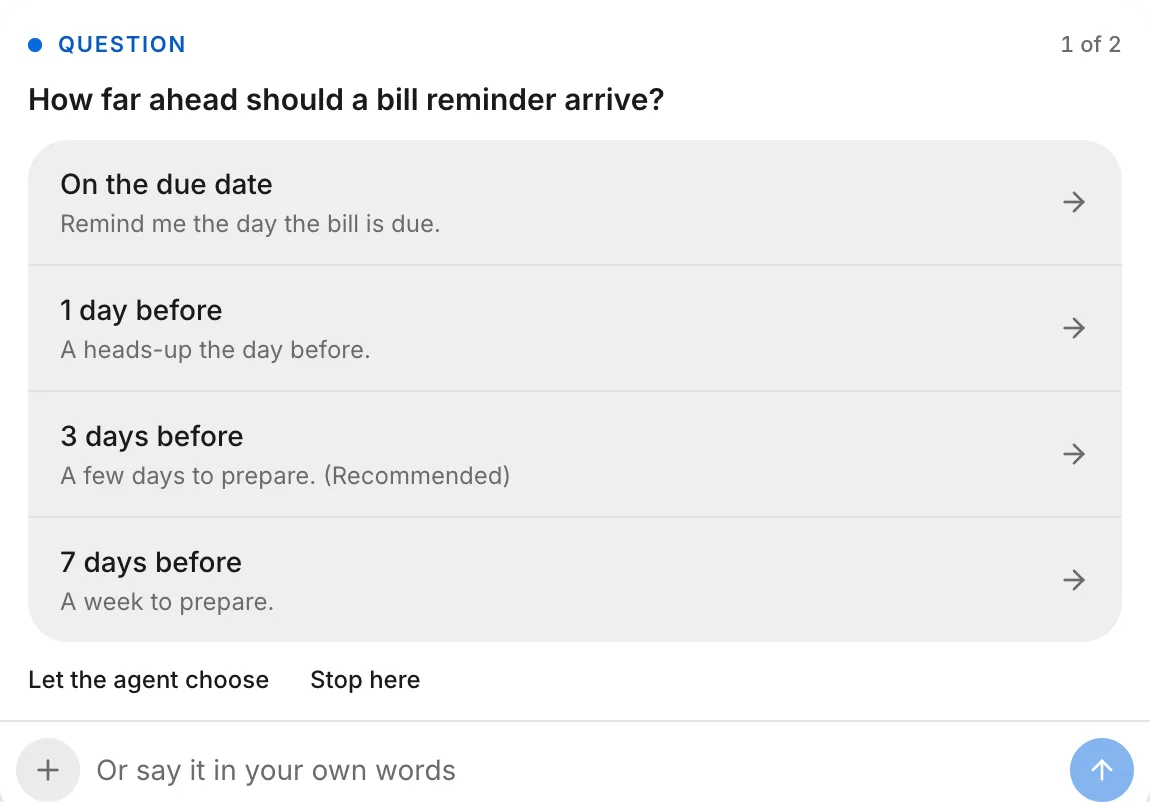
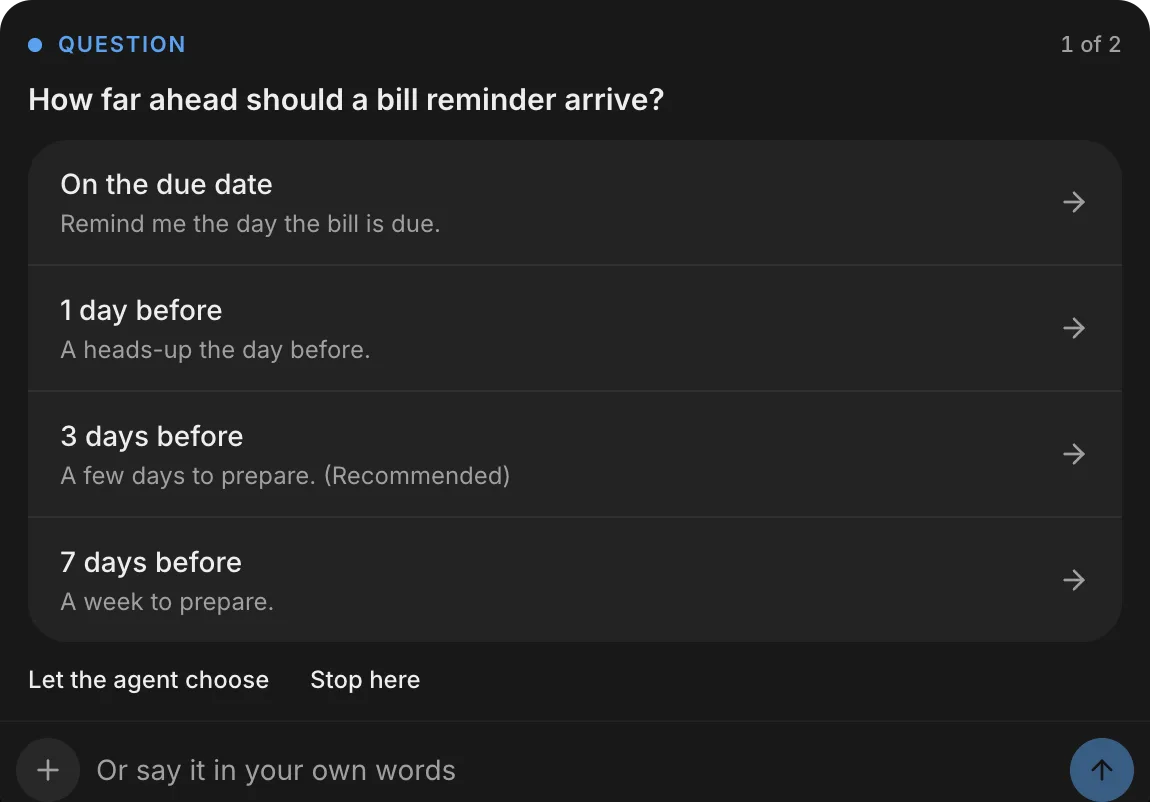
Answer in one of these ways:
- Click an option. If it’s the only question or the final one, FlutterFlow sends your answer immediately.
- When the message field shows Or say it in your own words, type your answer there and send it.
- To hand the decision back to the agent, click Let the agent choose. See Let the agent choose.
When the agent asks several questions at once, the card tracks your position, such as 1 of 2, advances after each answer, and sends all your answers together after the last one.
When a question accepts multiple answers, select each option that applies, and then click the button that follows the options. The button reads Next while questions remain, Send answers on the final question of a set, or Send 2 answers (with the number that you selected) on a single question.
Answer a proposal
A Proposal card asks for your approval before the agent builds. To answer a proposal, follow these steps:
- Read what the agent proposes. When the agent lists the steps, the Plan card shows them and reads Proposed while it waits for your approval.
- Respond in one of these ways:
- Click one of the card’s buttons, such as Build it or Not now.
- Type your changes in the message field (Or say what to change) and send them.
After you approve the plan, the Plan card tracks the agent’s progress, such as 2 of 5 done, and then shows All done. Steps that the agent adds later show Added, and steps that the agent revisits show Again.
Pick a design direction
A Choice card presents two or more design directions as pictures of your app’s screens, with the agent’s suggestion (or the first direction) preselected.
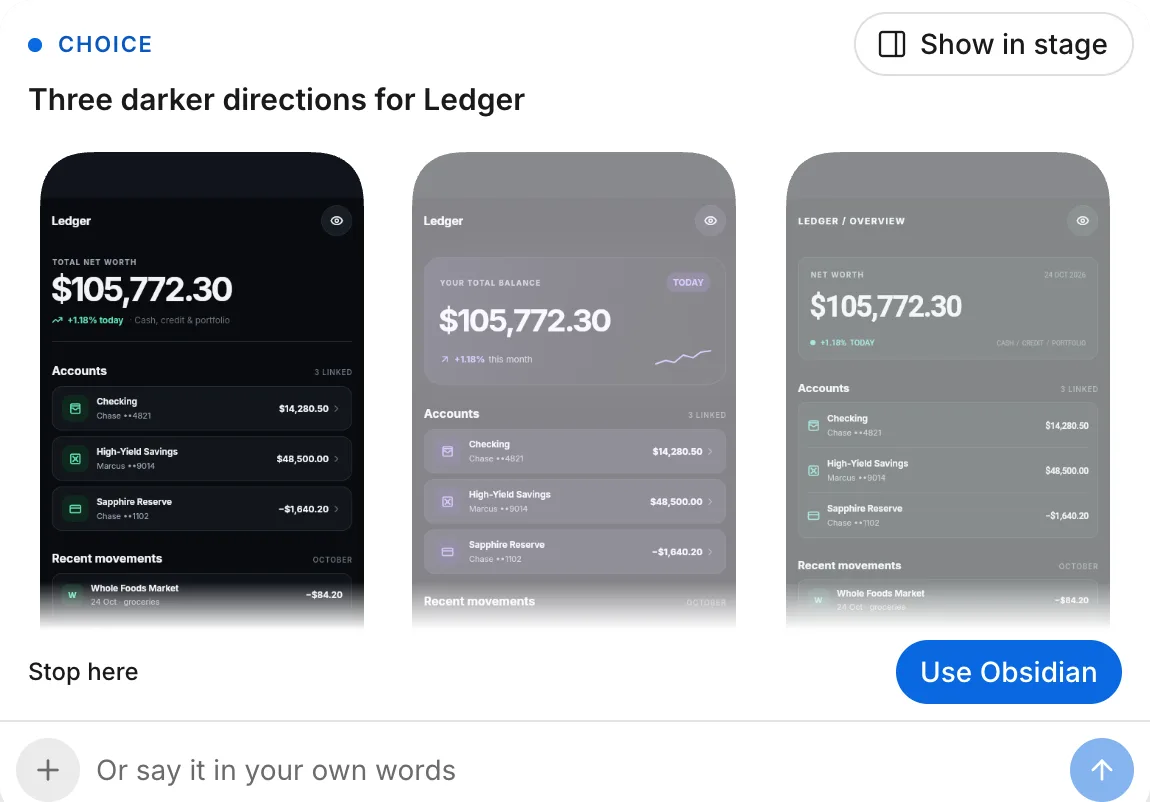
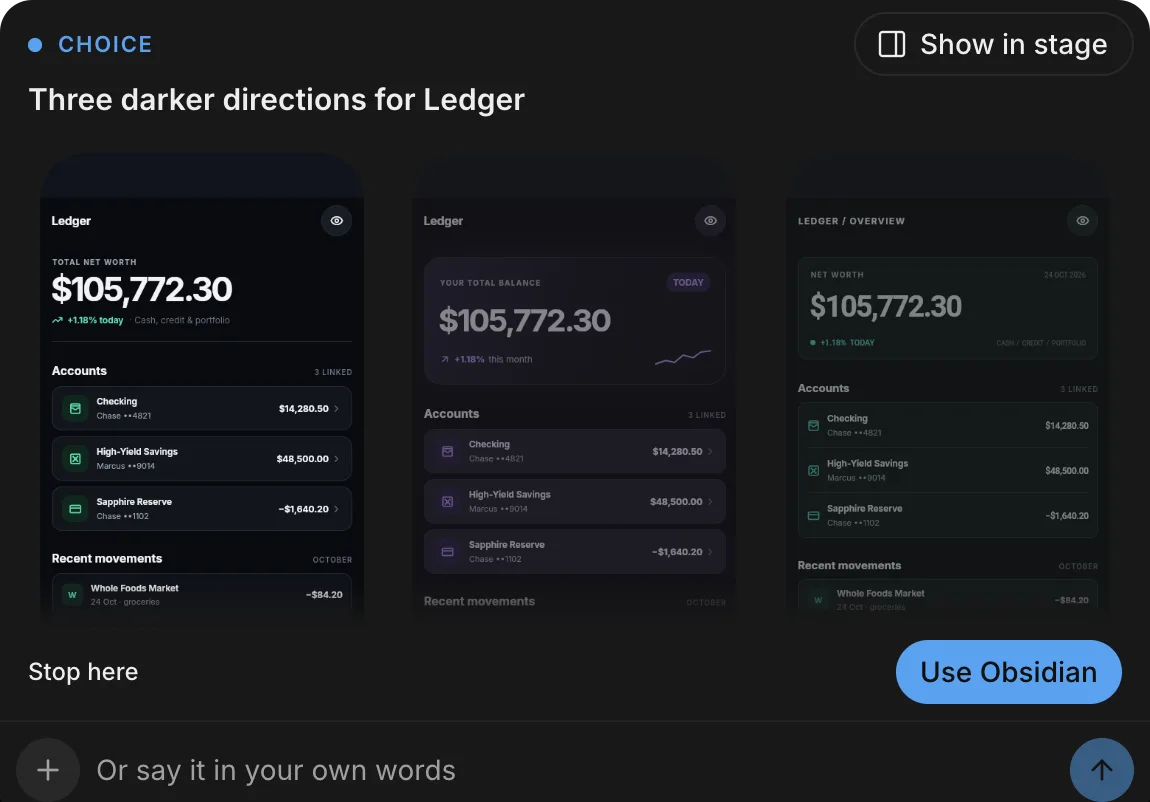
To pick a direction, follow these steps:
- Optional: To compare the directions on the Choose tab, click Show in stage.
- Select your preferred direction on the card or on the Choose tab. The card and the tab show the same selection.
- Click Use followed by the direction’s name, or describe what you want in the message field (Or say it in your own words).
For more information, see Design directions.
Suggested next steps
When the agent suggests next steps, they show as a Try next row above the message field. Click a step to add its request to the message field without sending it. You can edit the request before you send it.
Let the agent choose
On a Question card, Let the agent choose hands the decision back to the agent. If the question has a recommended option, the agent picks it. Otherwise, the agent chooses the best option and states what it chose.
On a card with several questions, Let the agent choose hands only the unanswered questions to the agent and keeps the answers that you already gave.
Stop here
Stop here dismisses a Question or Choice card without answering it and marks the turn Stopped while waiting. If the agent is in the middle of a turn, Stop here also stops the turn. To continue, send a new message in the thread.
After you answer
After you settle a card, a compact row replaces it in the thread to record the outcome:
- Answered, followed by your answer.
- The agent chose, followed by the agent’s recommended option, when you click Let the agent choose.
- Left to the agent, followed by the question, when you click Let the agent choose on a question without a recommended option.
- Not answered, followed by the question, when you click Stop here or move on without answering.
When you answer several questions on the card or with Let the agent choose, each question gets its own row. If you click Stop here on a card with several questions, one Not answered row records the set. To reopen a card with the chosen answer marked, click its row.