Troubleshoot threads and the agent
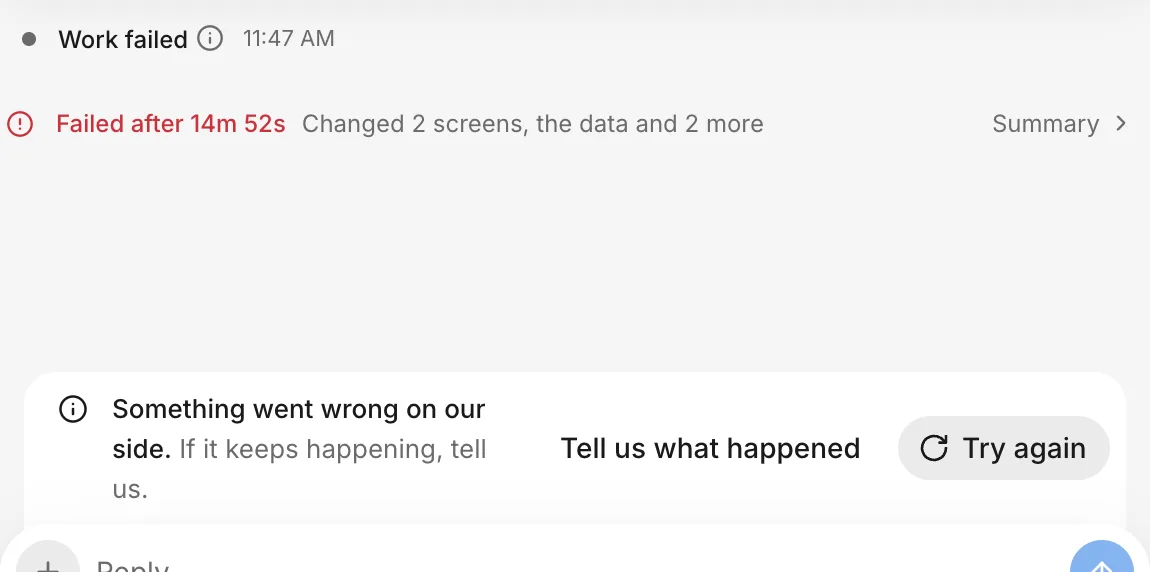
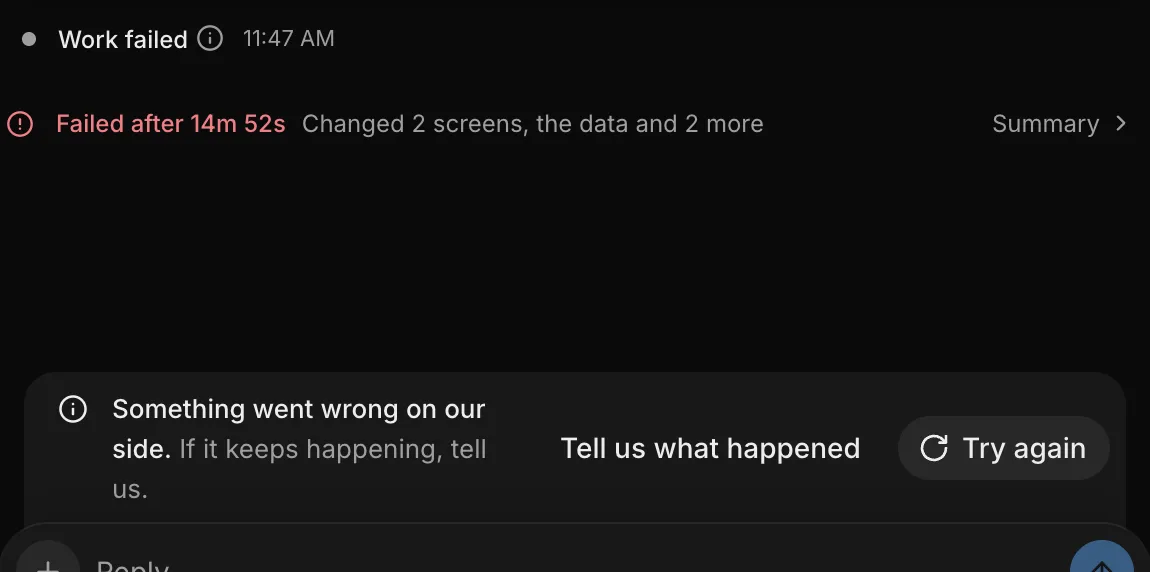
Use this page when a turn fails, a message won’t send, or a thread stops taking messages. When a turn fails, the conversation marks where it stopped with Work failed or Work stopped, and a strip above the composer (the message box) explains what happened and offers a button for the next step, such as Try again, Tell us what happened, Start a new thread, or Reload.
Only the person who started a thread can send messages in it or click Try again on the strip. If a teammate started the thread, ask them to continue it, or start your own thread.
A message won’t send
What it means: Your message didn’t reach the agent. The conversation marks the message not sent with Try again and Discard buttons, or the composer says “Message could not be sent. Try again.”
Fix it:
- Check your internet connection.
- On the message marked not sent, click Try again to resend it, or click Discard to remove it.
- If the send button is unavailable and the count beside Attach files shows how many characters you’re over the limit (on a phone, tap the ring to see the count), see “This message is too long to send.”
- If the strip shows another message, find it on this page. If your allowance ran out, see Out of allowance. If the composer says you pasted a credential, see Connections.
“This message is too long to send.”
What it means: Your message exceeds the character limit. Queued text counts toward the same limit. As you near the limit, a count beside Attach files shows how many characters remain, and then how many you’re over. On a phone, tap the ring beside the button to see the count.
Fix it:
- Shorten your message until the count shows that it fits within the limit.
- Send the message again.
“Too many messages are waiting in this thread.”
What it means: The thread’s queue is full. Messages that you send while the agent works wait in a queue on the composer, which holds a limited number of messages.
Fix it:
- Wait for the agent to finish the queued messages.
- Send your message again.
“It already started, so it can’t be withdrawn.”
What it means: You clicked Remove from queue or Edit prompt on a queued message after the agent already started working on it.
Fix it:
- Let the turn finish, or click Stop to end it early, and then send your next message.
“Couldn’t reach FlutterFlow, so we can’t tell yet whether it was withdrawn.”
What it means: You tried to withdraw a queued message, but the connection dropped before FlutterFlow responded. The message might still be in the queue, or FlutterFlow might have removed it.
Fix it:
- Check your internet connection.
- Reload the page to check whether the message is still in the queue.
“Stopped.”
What it means: You clicked Stop or pressed Escape in the composer to end the turn. This isn’t an error, and queued messages keep their place.
Fix it:
- Send a message to continue.
“Your workspace couldn’t start.”
What it means: Each thread has a workspace where the agent works on the thread’s copy of your app. FlutterFlow couldn’t start this thread’s workspace or keep it running.
Fix it:
- Wait a moment.
- Click Try again on the strip. While the workspace restarts, the composer can show “Restarting the workspace…”.
“There’s no room to start your workspace right now.”
What it means: FlutterFlow doesn’t have capacity to start a workspace right now. Nothing is wrong with your thread.
Fix it:
- Wait a few minutes.
- Click Try again on the strip.
The thread’s workspace is asleep
What it means: The thread’s workspace isn’t running. The thread’s preview shows that it’s asleep, and the thread’s Data tab takes a moment to load while the workspace restarts.
Fix it:
- To wake the thread’s workspace for the turn, send a message in the thread. For the preview, see Troubleshoot the preview.
“This thread’s workspace is stopped, so its data can’t be reached.”
What it means: The thread’s workspace isn’t running, and the Data tab can’t start it. Nothing can read or change this thread’s data until the workspace starts again. This message appears when you save a change on the thread’s Data tab, or on that tab under “Couldn’t load this thread’s data.”
Fix it:
- To restart the workspace, send a message in the thread.
- Return to the Data tab and click Try again. If the message appeared when you saved a change, make the change again.
“This thread is stopped, so its data can’t be reached.”
What it means: The thread is closed to new messages, so its workspace can’t restart and the Data tab can’t reach its data. This message appears on the thread’s Data tab.
Fix it:
- Start a new thread to continue working.
“The AI model didn’t respond.”
What it means: The agent didn’t receive the response that it needed to continue the turn. This problem usually passes quickly.
Fix it:
- Click Try again on the strip.
“This ran too long and stopped.”
What it means: The turn exceeded the time limit and stopped.
Fix it:
- Click Try again on the strip.
- If the turn stops again, split your request into smaller steps and send one step at a time.
“The changes from this turn couldn’t be saved.”
What it means: The turn ended without saving its changes to the thread.
Fix it:
- Click Try again on the strip.
- If the problem continues, click Tell us what happened.
“The agent is running as many tasks as it can.”
What it means: The agent splits its work into tasks, and this thread has reached its limit of running tasks.
Fix it:
- Wait for running tasks to finish.
- Click Try again on the strip.
“That’s a lot of requests at once.”
What it means: FlutterFlow received too many requests in a short time and refused this one.
Fix it:
- Wait a minute.
- Try again.
“You’ve reached a usage limit.”
What it means: A request exceeded one of FlutterFlow’s usage limits.
Fix it:
- Try again later.
- If the problem continues, click Tell us what happened, or send feedback.
“Something went wrong on our side.”
What it means: FlutterFlow had an unexpected error.
Fix it:
- Click Try again on the strip.
- If the problem continues, click Tell us what happened, or send feedback.
“That’s no longer there.”
What it means: The item that you tried to use no longer exists.
Fix it:
- Reload the page to see the current state.
“This thread has reached its message limit.”
What it means: The thread has reached its maximum number of messages, and the composer is closed.
Fix it:
- Click Start a new thread and continue there.
“This thread is closed to new messages.”
What it means: The thread no longer accepts messages (for example, because someone deleted it), and the composer is closed. The strip can also say “This thread was closed by the platform.”
Fix it:
- Click Start a new thread and continue there.
The thread that you had open was deleted
What it means: Someone deleted the thread (for example, in another tab) while you had it open. The page shows This thread was deleted in place of the conversation. Any changes that you already pushed from the thread remain in your app.
Fix it:
- To start a new thread, click New thread.
“You’ve reached this month’s limit for new threads.”
What it means: This app reached its monthly limit for new threads, so FlutterFlow didn’t start a new one. The limit counts every new thread in the app, whoever starts it.
Fix it:
- Continue working in an existing thread.
Problems covered on other pages
- “Agent access is paused for your account.” (Troubleshoot your account and plan)
- An approval expired (Troubleshoot connections)
- “Another thread is being pushed to your app.” (Troubleshoot pushing)
- “Couldn’t reach FlutterFlow.” (Troubleshoot loading and reconnecting)
- “FlutterFlow isn’t responding right now.” (Troubleshoot loading and reconnecting)
- “Live updates stopped.” (Troubleshoot loading and reconnecting)
- “Reconnecting to live updates…” (Troubleshoot loading and reconnecting)
- “That looks like a provider secret key. Don’t paste credentials into the chat — ask for a secure field instead, and rotate this one.” (How connections work)
- The preview says the thread was stopped (Troubleshoot the preview)
- The preview says the thread’s app is asleep (Troubleshoot the preview)
- “This stopped when your usage ran out.” (Out of allowance)
- “Verify your email to keep building.” (Troubleshoot getting started)
- “Verify your email to start building.” (Troubleshoot getting started)
- “We couldn’t confirm this went through.” (Troubleshoot loading and reconnecting)
- “You don’t have permission to do that.” (Troubleshoot teamwork)
- “You’ve reached your usage limit.” (Out of allowance)
- “You’ve used this month’s allowance.” (Out of allowance)
- “You’ve used this week’s allowance.” (Out of allowance)