What changed
Track what each turn changed and review everything the thread will bring into your app before you push.
Follow a turn
While the agent works on a turn, a status line at the end of the turn reports the current step and the elapsed time. It names high-level steps, not files or commands, such as the following:
- “Starting the agent”
- “Thinking through the next step”
- “Exploring the project”
- “Making changes”
- “Running tasks”
- “Updating your app”
To see the turn’s changes so far, click Show work. The counts start with “So far:”.
Turn summary
When a turn finishes, its line reports the outcome and the agent’s active working time (not counting time spent waiting for your reply):
- “Done in 2m 31s”
- “Waiting for you”
- “Stopped after 1m 02s”, or “Stopped while waiting”
- “Failed after 40s”, with the error underneath
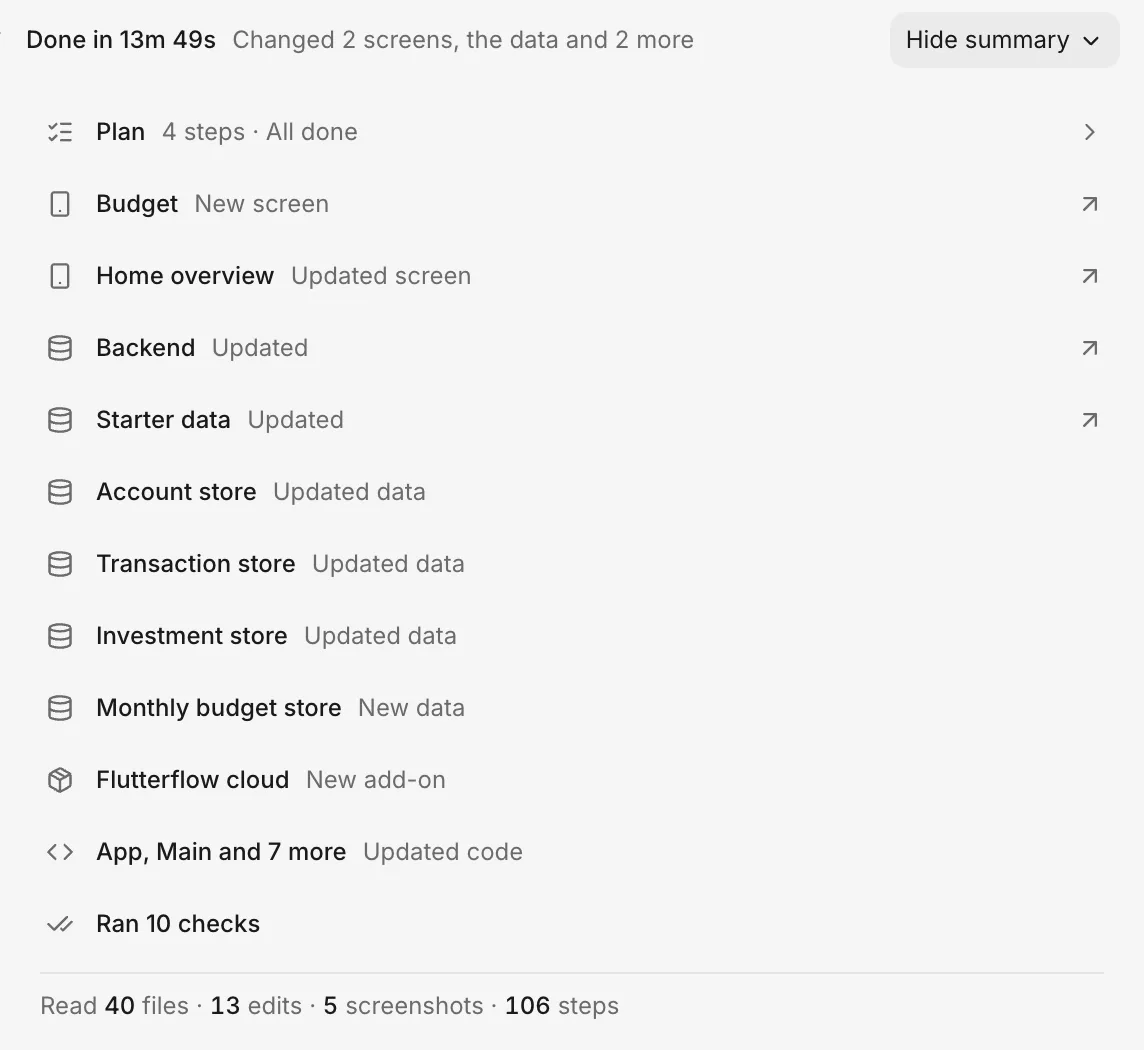
Next to the outcome, the line summarizes what changed, such as “Changed 2 screens”.
To inspect the turn’s summary:
- Click Summary on the turn’s line.
- Review the rows. Each row names one item that the turn changed:
- Screens: one row per screen, marked “New screen”, “Updated screen”, or “Removed screen”.
- Backend: one row per added, changed, or removed table, marked “New data”, “Updated data”, or “Removed data”, or a single Backend row marked “Set up” or “Updated”.
- App data: one row for each part of the data your app keeps itself, such as a store, marked “New data”, “Updated data”, or “Removed data”.
- Starter data: a Starter data row for records that new threads start with, such as “New rows” or “Updated rows”.
- Pictures: the count of pictures the turn added, changed, or removed, such as “3 pictures”.
- Add-ons: added or removed packages, by name.
- Code: other changed parts of your app, such as “Updated code”.
- Tasks: “Ran N tasks” (such as “Ran 2 tasks”), or “Running N tasks” while they run.
- Checks: “Ran N checks”, or “Running checks” while they run.
- To see a row’s details, click it:
- A screen row opens that screen on the Screens tab. See Screens.
- A Backend or Starter data row opens the thread’s backend changes on the Changes tab. If the change is already pushed, the row opens it in Backend.
- The tasks row and a row of added or changed pictures expand in place.
Plan progress
For multi-step changes, the agent shows a Plan card in the turn. The card tracks progress, such as “3 of 5 done”, and reads “All done” when the plan is complete. Each step shows its duration, “Waiting for you”, or “Stopped”. Steps added later show Added, and steps that the agent revisits show Again.
When the agent proposes a plan before building, the card shows Proposed until you respond. See Answer a proposal.
When the next turn starts, the card leaves the thread and stays in that turn’s summary as a Plan row showing its step count and outcome.
While you were away
When you return to a thread that had activity while you were on another page, a Since you left divider marks where the new activity begins. Below it, a summary states the thread’s status, such as “It’s waiting on your answer.”, “It finished.”, “It’s still working.”, or “It stopped on an error.”, along with activity counts such as “12 steps · 1 reply”.
Thread status
Below the thread’s name, a status chip shows where the thread stands:
- working: the agent is working on a turn.
- waiting on you: the agent asked you a question or is waiting on a card that asks you for something. The chip also shows when a push stopped or needs your answer before it can finish, such as which version to keep.
- pushing: FlutterFlow is pushing the thread to your app.
- in your app: all changes in the thread are in your app.
- stopped: the agent’s work stopped.
- failed: the turn ended with an error.
- done: the turn finished.
- preparing or ready: the thread hasn’t started working yet.
Beside the chip, the line shows when the thread started. After a push, it adds “In your app since” with a timestamp. After you continue working in the thread, it shows “Last pushed” with a timestamp instead. If another thread is pushing, it reads “Waiting for”, the other thread’s name, and “to finish pushing”.
Unpushed changes
When a thread has unpushed changes, a button above the message box shows the count, such as 3 changes. To review them:
- To open the list of changes and their timestamps, click the changes button. If the thread also changes your app’s backend, the list begins with a line such as “Also changes the backend: Orders, Tasks”.
- To see a row’s changes on the Changes tab, click View beside it.
Changes tab
The Changes tab lists every change in the thread and shows whether it’s in your app. The tab appears after the thread makes its first change, and its badge counts the unpushed changes. To review the changes:
- Click Changes in the tabs above your app.
- Check the first section, which lists unpushed changes under a heading such as “3 changes not in your app yet” and a Not pushed chip (or Pushing while a push runs).
- Review the sections for earlier pushes, each marked with an In your app chip.
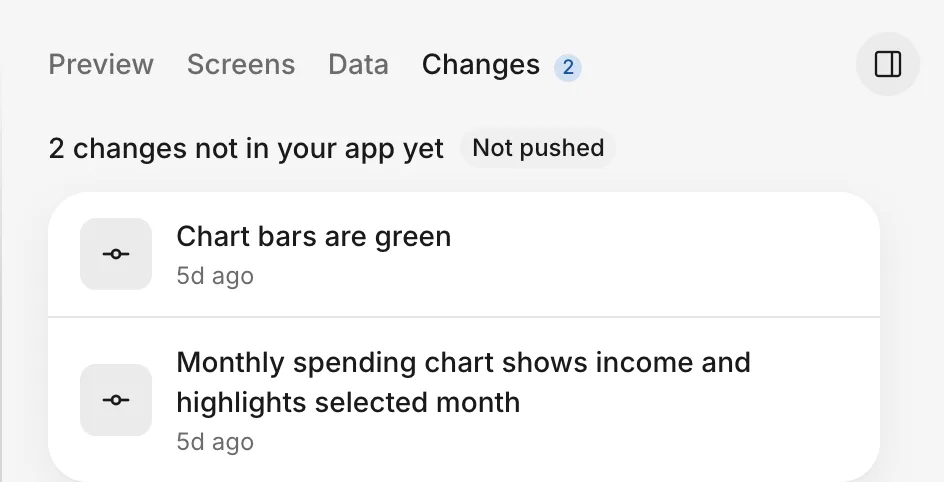
Each row shows what changed and when. Rows don’t expand to show code.
Backend changes
When a thread changes your app’s backend, each relevant section on the Changes tab starts with a Backend group. Each affected backend item, such as a table or sign-in, gets its own row. Chips such as New table or Removed mark added or removed parts. Expanding a row lists what changed in it.
To see the details of a backend change:
- Before you push: click a row to expand its details in place. The Starter data row summarizes records for new threads, such as “For new threads: 1 account, 2 orders”. To view those records on the Data tab, expand the row and click See in Data.
- After a push: click a row to open that item in Backend.
To view the full change in Backend, click See in Backend beside the group label.
For more about the backend, see How the backend works.